Business News
Transform Any Scene with the CapCut PC Feature Background Remover

Creating visually appealing videos often comes down to one powerful skill — controlling the background. Whether you’re producing a product video, a tutorial, or social media content, being able to isolate your subject and place it in any setting can completely transform your video’s quality.
CapCut PC and its Background Remover feature — a simple yet powerful tool that uses AI to instantly remove, replace, or enhance backgrounds without any complex editing skills required. The Background Remover feature allows you to transform any ordinary video into something cinematic, clean, and professional-looking.
You don’t need a green screen or external plug-ins — CapCut PC’s built-in AI does all the heavy lifting. With just a few clicks, you can turn your living room into a dreamy beach, a modern office, or even a vibrant gaming studio backdrop.
Why the Background Remover on CapCut PC Is a Game-Changer
- No Green Screen Needed
Traditionally, creators used green screens and advanced software to replace or clean up video backgrounds. CapCut PC eliminates that need entirely. With its intelligent AI background detection, you can remove or replace backgrounds automatically — no manual masking, chroma keying, or color correction necessary.
- Perfect for Any Creator
Whether you’re a YouTuber, teacher, business owner, or content creator, the Background Remover tool can help. Educators can use it to record lessons with digital backgrounds. Marketers can film product demos without needing expensive studio setups. Even gamers can overlay themselves on dynamic gameplay footage for engaging streams.
- Saves Time and Boosts Creativity
Editing can be time-consuming, especially when you’re manually cutting out people or objects. CapCut PC’s AI-powered tool speeds up this process dramatically. You can generate images by using the CapCut AI Image Generator tool. You can remove, change, or blur a background in seconds, giving you more time to focus on storytelling, music, and transitions.
- High-Quality Output
Unlike many online tools that leave rough edges or visual glitches, CapCut’s Background Remover maintains sharp outlines and natural lighting around your subject. It ensures that your videos still look polished and realistic even after the background has been replaced.
How to Remove the Video’s Background
Transforming your video’s background using CapCut PC is incredibly simple. Here’s a step-by-step guide to get you started:
Step 1: Upload Your Video
Launch CapCut Desktop Video Editor on your computer. Click “Create project” to start a project. Click on “Import” to bring your clip into the timeline. Once your clip appears in the media library, drag and drop it onto the timeline. This is where all your main edits — including background removal — will take place. Make sure your video clearly features the person or object you want to keep, as this helps the AI detect and isolate it more effectively.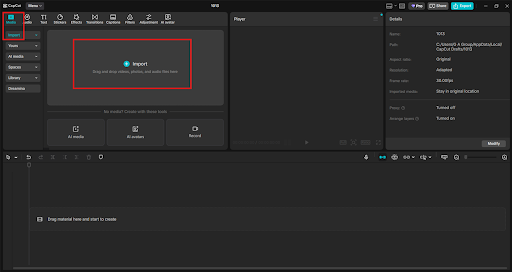
Step 2: Use Auto Removal
In the panel on the right, go to “Video” → “Remove BG.” Next, click on “Auto removal” to let CapCut automatically erase the background from your clip. The built-in AI quickly identifies the main subject and precisely traces its edges, giving you a smooth and accurate background removal.
Within seconds, your background will vanish, leaving your subject perfectly cut out. You’ll notice that even fine details — like hair or clothing edges — remain crisp and natural. This process is fast, automatic, and surprisingly accurate, making it one of the easiest ways to transform your scene without needing expensive tools or technical know-how. Use CapCut’s other features, such as Text to Speech AI, to add narration to your videos. 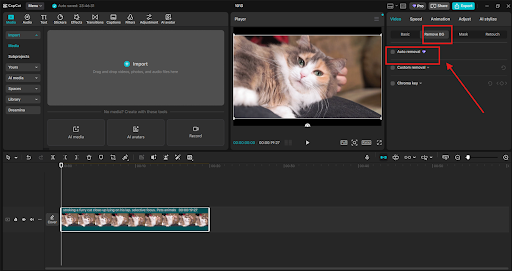
Step 3: Export and Share
Once you’re happy with your new background, head to the “Export” section. Adjust parameters like video quality, frame rate, and format according to your project needs. Then, click “Export” to save the final video to your device. You can also share your edited video directly to social platforms such as YouTube, TikTok, or Instagram right from CapCut PC. The seamless sharing option helps you publish high-quality content faster and more efficiently. Your transformed video is now ready to impress your audience — whether it’s a creative skit, professional tutorial, or product promotion.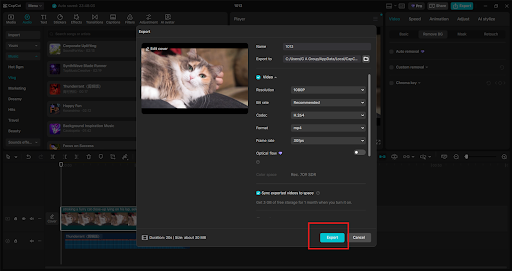
Creative Ways to Use CapCut’s Background Remover
The Background Remover isn’t just for cutting out distractions — it opens endless creative possibilities. Here are a few ways to make the most of it:
- Create Custom Virtual Sets: Replace dull walls with stunning digital environments to give your video a cinematic look. Perfect for vloggers and presenters.
- Add Branding to Business Videos: Use branded visuals or logos as your background for a clean and professional presentation.
- Make Dynamic Tutorials: Combine yourself with animated or screen-recorded footage to make learning more engaging.
- Produce Eye-Catching Reels: Remove cluttered spaces and replace them with bold visuals that capture attention instantly.
- Enhance Product Showcases: Highlight your product by isolating it from the background and placing it in themed or seasonal settings.
With CapCut PC, your creative ideas are never limited by your surroundings.
Conclusion
The Background Remover feature on CapCut PC is an essential tool for anyone who wants to make professional, creative, and high-quality videos without needing expensive gear or complicated editing. Whether you’re producing content for business, education, or fun, this feature helps you take complete control of your video’s look and feel. With just a few clicks, you can transform any scene, swap out backgrounds, and instantly elevate your content — all thanks to the power of CapCut’s AI. So, open CapCut PC today, try out the Background Remover, and see how effortlessly you can turn an ordinary video into something truly captivating.